
Configuration editor
Every setting the app reads, edited in the browser, applied on the next request.
The app's behaviour comes from one configuration tree, the same shape as
librechat.yaml. The Configuration page edits every value of it from
the browser. The form is generated from the schema, so a setting that ships
with a new version appears here on its own.
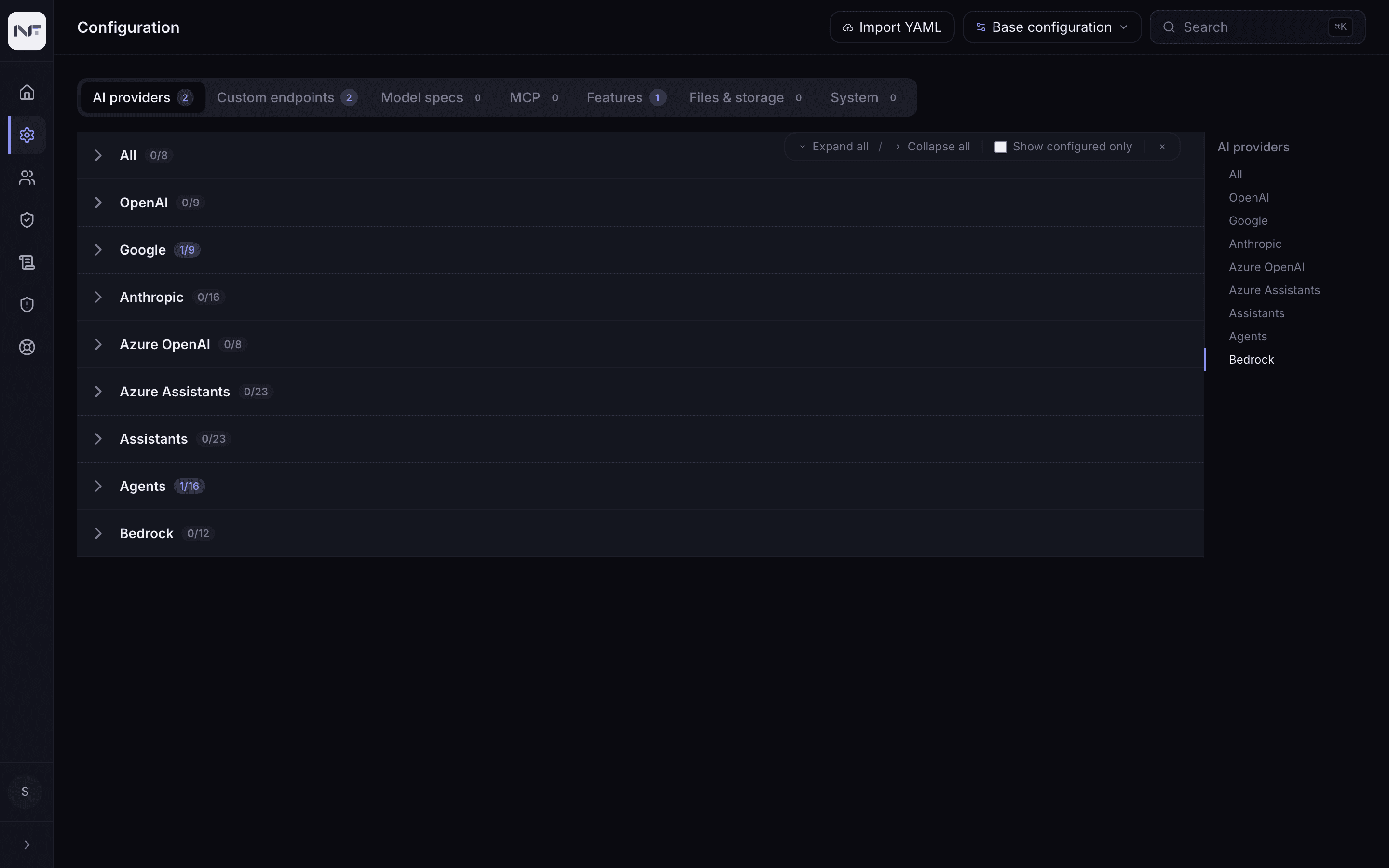
The tabs
The number on each tab counts how many values are configured there.
| Tab | What it holds |
|---|---|
| AI providers | credentials and options per provider: OpenAI, Google, Anthropic, Azure OpenAI, Bedrock, Assistants, Agents |
| Custom endpoints | your own OpenAI-compatible endpoints; on NuFi this is the gateway |
| Model specs | the curated model entries users see, each a model plus a preset |
| MCP | Model Context Protocol servers, the tools agents can call |
| Features | interface toggles, speech, actions, memory, web search, OCR, tool filters, summarisation |
| Files & storage | the storage backend, allowed types, size caps |
| System | registration, and other server-level settings |
| Other | any section of the schema not yet assigned to a tab; a new setting lands here first |
Inside a tab, expand a section to see its fields. Expand all, Collapse all and Show configured only sit above the form. There is no field search; ⌘K finds tabs and sections.
Edit a value
Fields have modes: Simple for one value, Advanced for the raw structure, i18n for one value per language, Multi for lists. Switching a field back to Simple asks you to remove its extra locale entries first; they would be lost otherwise.
Base configuration and profiles
The scope selector above the form reads Base configuration by default: the values everyone gets. A profile is a set of values for a role or a group that beats the base for those people. Pick or Create one in the selector, edit, save; the values apply only within it. Configuration profiles explains how they resolve.
Custom endpoints and the gateway
On NuFi, the one custom endpoint is the gateway, and the model dropdown
users see is the gateway's model list. The app caches that list when it
starts; a model registered on the gateway afterwards appears after the app
is restarted (docker compose restart librechat on the compose stack, a
redeploy on Railway).
Endpoints you add here can be mirrored into the gateway, so that their traffic passes the gateway's checks and budgets too. The badge on each custom endpoint reads Synced, Syncing, Sync failed or Not synced, and Re-sync pushes it again. This is off unless the deployment sets it up; see Gateway admin.
Model specs
A model spec is what users pick from: a name, a model on an endpoint, and the preset it starts with (system prompt, parameters). Without any, the dropdown shows every model the gateway serves; with them, only the specs. Group them by team, and combine with a profile to show different specs to different groups.
Team workspaces
The app's team workspaces (shared conversations, knowledge and sub-groups inside a team) have their limits under the teams section: teams per user, members per team, knowledge files per team, sub-groups per team. These are the app's teams, unrelated to the gateway's teams in Gateway admin.
Import YAML
Import YAML (top right) takes a librechat.yaml-style document,
pasted or uploaded, and applies it in one go. The flow is Validate &
import, choose the target (Base configuration, or a profile with a
priority), Apply. There is no diff view; check the values you care
about afterwards with Show configured only.