
Admin panel basics
Sign in, find your way around, and the capability model behind every action.
NuFi Admin Panel is the web app where you manage the NuFi app for your
organisation: configuration, roles, groups, members, capability grants,
and the audit log of who changed what. NuFi's own copy is at
admin.app.nufi.me; a self-hosted one runs from its own image
(Installing the admin panel).
Sign in
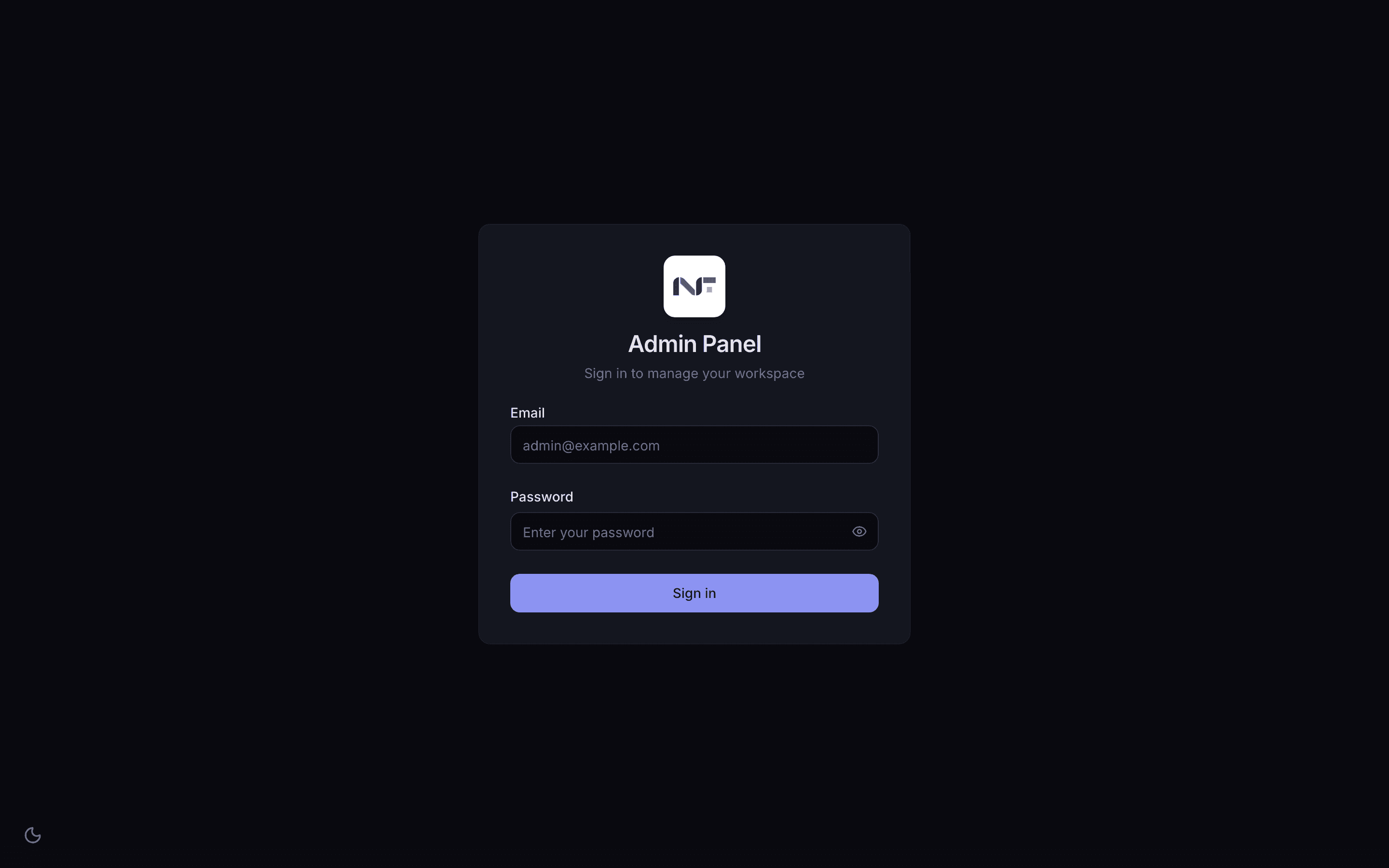
access:admin capability, which the
ADMIN role has. If single sign-on is configured, Sign in with SSO
instead.With SSO-only mode on, the panel goes straight to the identity provider. If that redirect fails, the password form comes back with a note saying so.
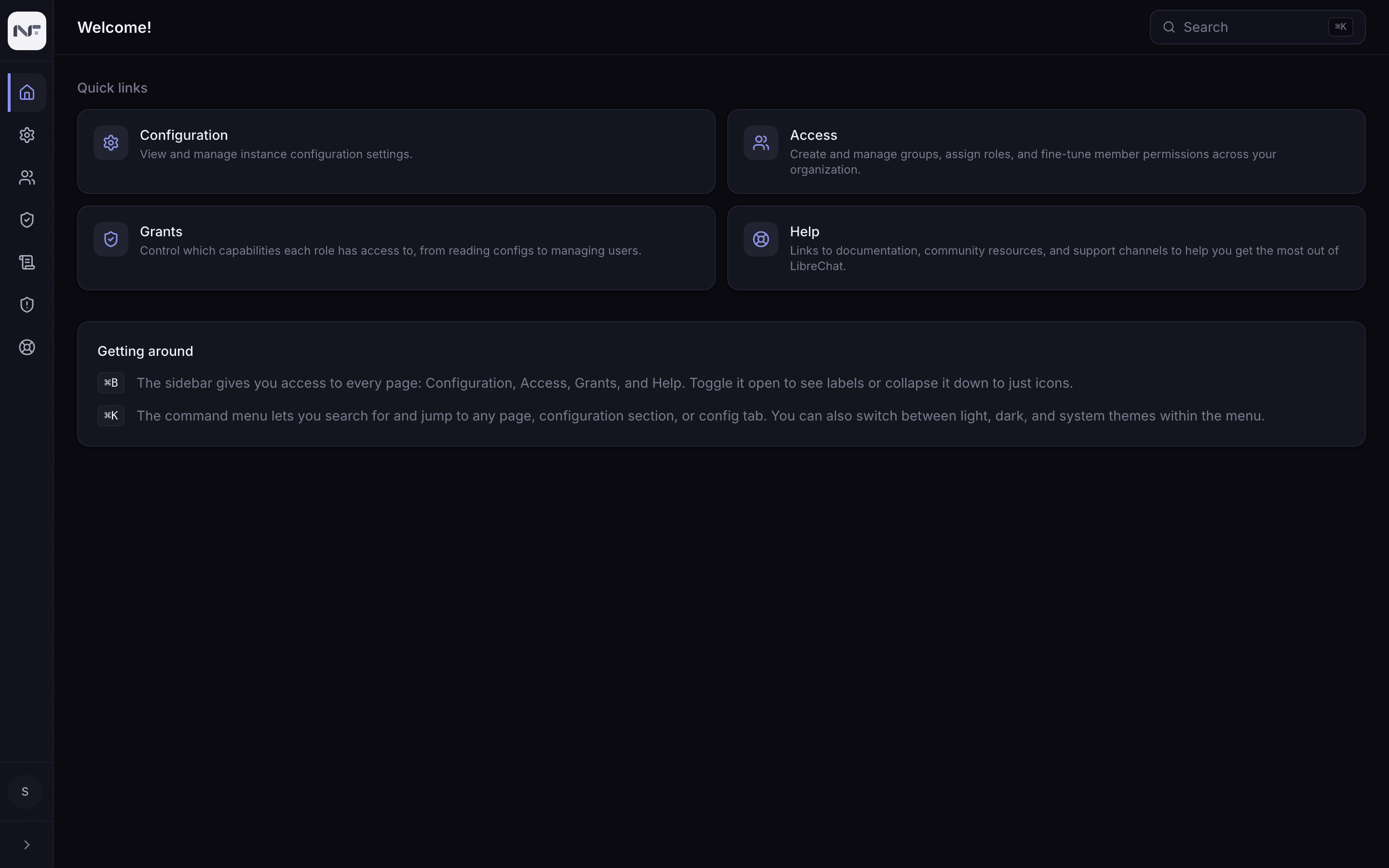
Find your way around
The left sidebar has seven destinations:
| Section | What it is for |
|---|---|
| Dashboard | quick links to Configuration, Access, Grants and Help |
| Configuration | every setting the app reads: providers, custom endpoints, model specs, MCP, features, files, system. Configuration |
| Access | roles, groups and their members. Roles and groups |
| Grants | which admin capabilities each role holds. Capabilities |
| Audit log | every admin action, with a CSV export. Audit log |
| Security | a page that has had no data source since July 2026; see below |
| Help | links to documentation |
The Security page used to show the app's own guardrail decisions. Those controls moved to the gateway on 2026-07-29 and the page says so at the top; an empty table there means the page has nothing to read from, not that nothing was blocked. The gateway's decisions are on the Grafana dashboard and in the gateway's audit events: Operating the guardrails.
Your account sits at the bottom left of the sidebar. ⌘K (Ctrl+K) opens a command menu that jumps to any page, configuration tab or section.
Some of the panel's own text still says "LibreChat", the project the app grew from, and the Help page links to that project's documentation rather than this manual. The panel is NuFi's; the strings have not caught up.
The capability model
Every admin action is gated by a capability. You do not hand out individual permissions; you grant a role a set of capabilities on the Grants page, then put people into that role on Access.
Two System roles ship built in:
ADMINholds every capability.USERholds none: ordinary use of the app, nothing here.
A constrained sub-admin is a new role with only the capabilities it needs.
A typical workflow
SUPPORT.access:admin, or the teammate cannot sign in
here.