
Roles and groups
Who can do what (roles) and who sees what (groups), on the Access page.
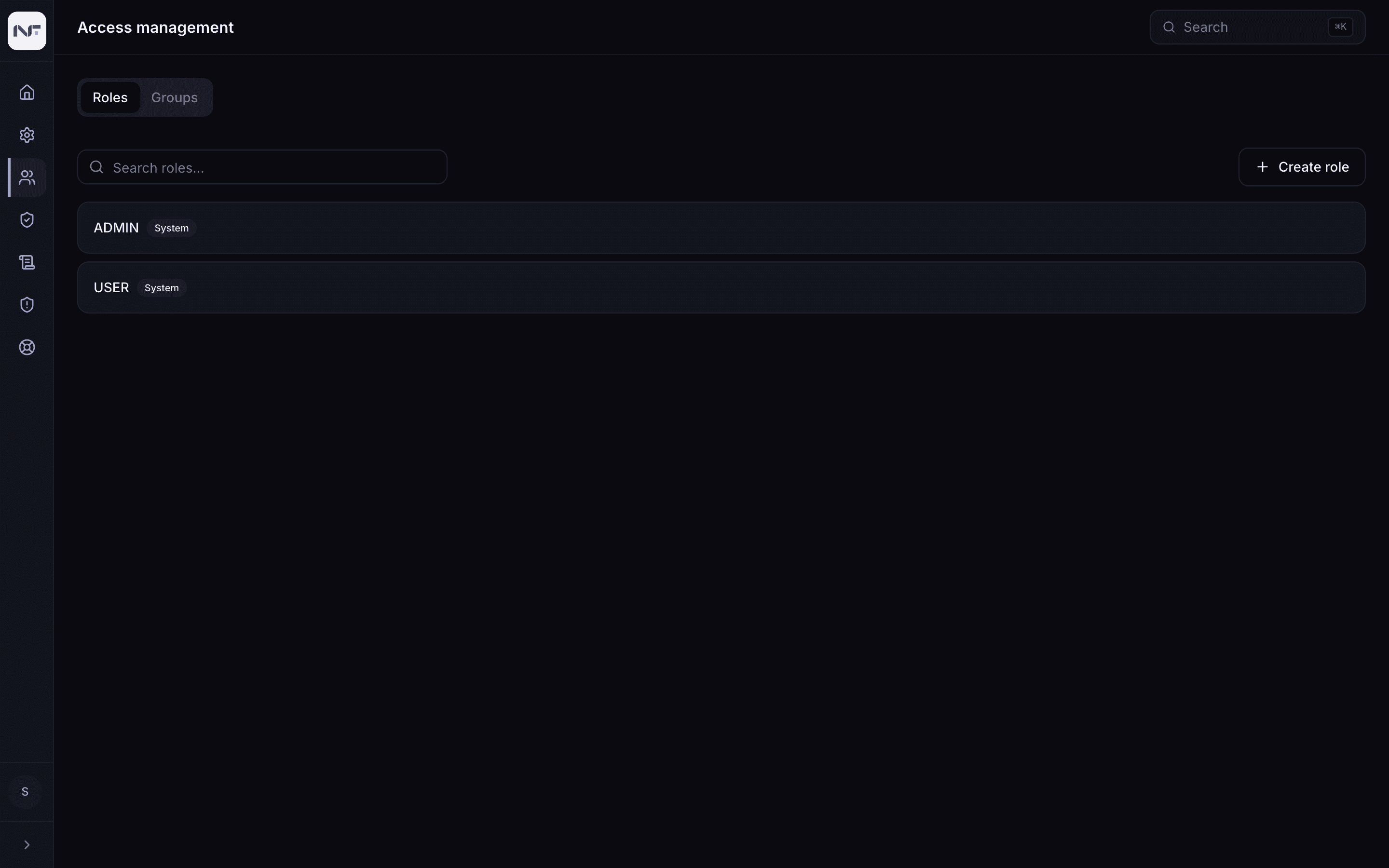
The Access page manages roles and groups and the people in them. It has two tabs, Roles and Groups.
Roles and groups are different ideas:
| Concept | Carries | Used for |
|---|---|---|
| Role | admin capabilities (set on Grants), the app's feature permissions, and optionally a configuration profile | who may administer what, and which features a role may use |
| Group | a configuration profile | which settings and limits a set of people get |
Roles
Two System roles ship built in and cannot be deleted or renamed:
ADMIN, with every capability, and USER, with none. You can still
manage their members.
Create a role
access:admin.Edit a role and its members
Click a role to open Edit role. It has three tabs:
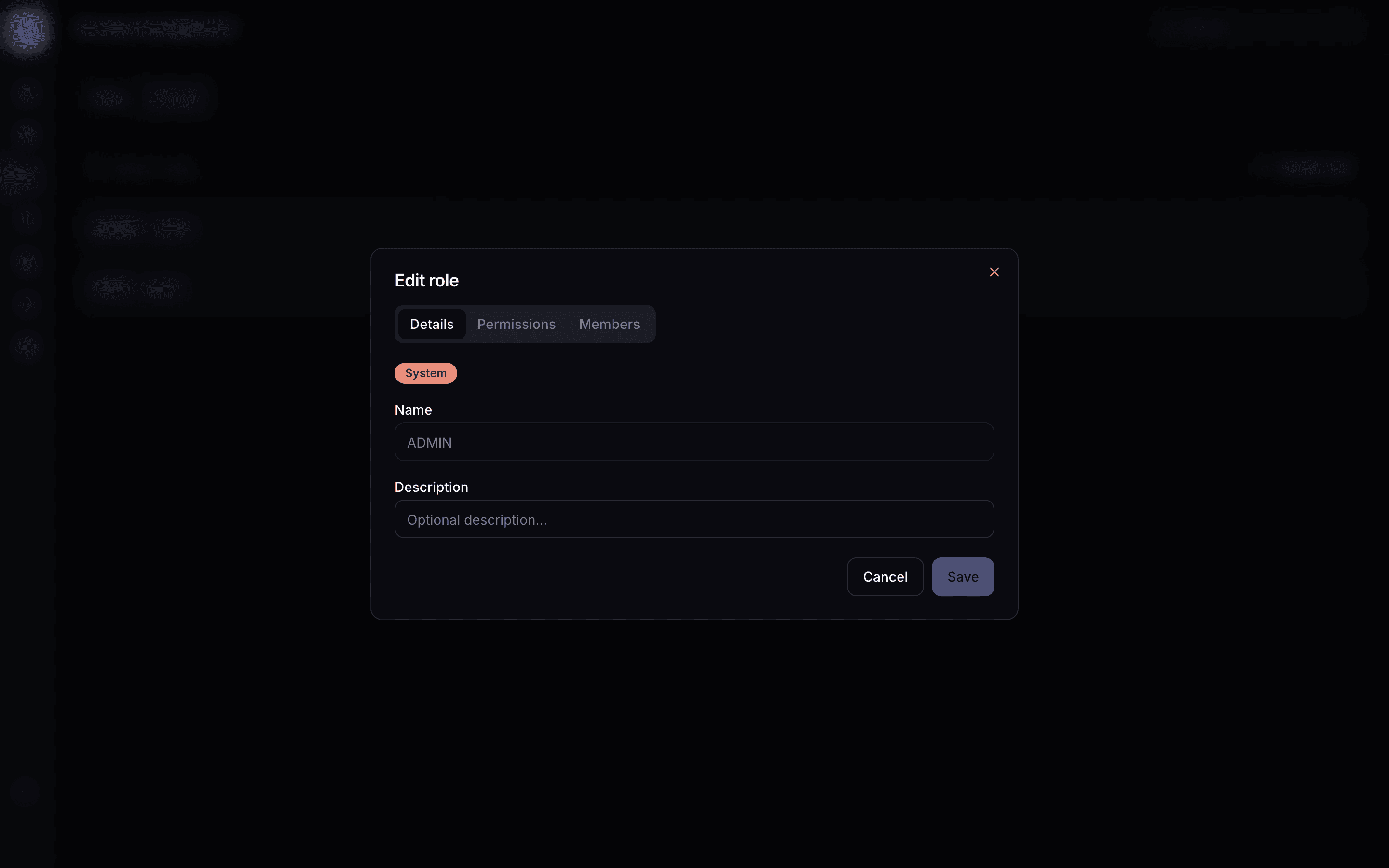
- Details: name and description.
- Permissions: the app's features for this role. Prompts, agents, memories, MCP servers, remote agents, bookmarks, multi-conversation, temporary chat, running code, web search, file search, file citations, the people picker, the marketplace. These are not admin capabilities; those are on Grants.
- Members: who holds the role. Add or remove people here; the change applies on their next request.
A person can be added to more than one role's members. Keep one admin role per person: the app's own account record carries a single role name, and the panel does not promise which one wins when two apply.
Groups
A group is a named set of people, so you can give them a configuration
profile once instead of editing each person. power-users with a higher
upload cap, beta with a feature the rest do not have.
Create a group and add members
Roles or groups?
A role for what someone may do: administer, and which features of the app they may use. A group for what the app shows and allows a set of people: models, limits, features on or off, through a profile. A person holds roles and belongs to any number of groups.