
Agents and skills
Build a reusable assistant with its own instructions, knowledge and tools, and hand it skills it can apply.
Instead of re-explaining what you want in every conversation, build an agent: a name, instructions, a model, and the capabilities it is allowed to use. Then pick it from the model picker like any model.
Agents live in Advanced mode. If the left icon rail shows no Agent Builder, switch modes first.
This page is about assistants inside a conversation. NuFi also has two separate agent apps — see Studio and Works.
Guides: Build a knowledge assistant and Automate a repeating task.
Build one
chat.nufi.me
that is File Search, which lets the agent answer from documents you
upload to it — see Knowledge. Web Search,
Run Code, Artifacts and Skills appear here when your organisation
enables them.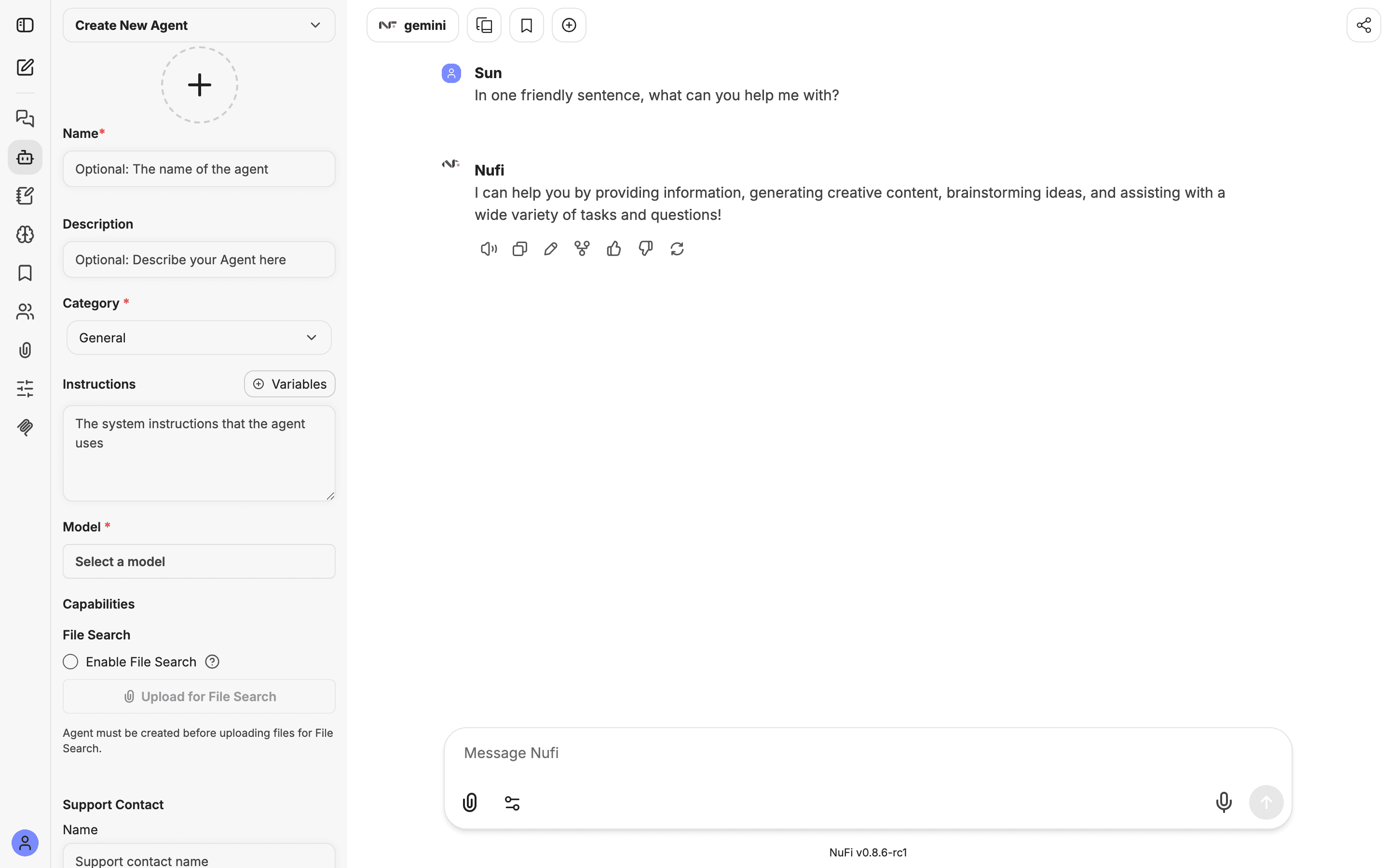
To use it, open the model picker and choose the agent under My Agents. Its capabilities travel with it, so there is nothing to switch on per conversation. The Tools menu you see beside the paperclip on a plain model is the same set of capabilities applied to one conversation without building an agent.
Writing good instructions
The instructions are what turn a generic model into something that feels like a colleague. Be specific:
- Role — "You are a senior support agent for an online store."
- Style — "Concise. Friendly. No jargon. End every reply with a clear next action."
- Constraints — "Never share personal data. For prices, link to the pricing page rather than quoting numbers."
- When stuck — "If you cannot answer with confidence, say so and offer to escalate."
Short and consistent beats long and contradictory. Give the agent only the capabilities it needs; fewer tools means faster, cheaper and more predictable answers.
Skills
A skill is a reusable set of instructions that an agent can apply on demand: a review checklist, a house style, a procedure. Where the same guidance keeps appearing in different agents' instructions, it usually belongs in a skill.
Skills have their own panel in the left icon rail once your
organisation enables them; chat.nufi.me does not have them switched
on today, so the panel is absent there. Where it exists, a new account
starts with "No skills yet", the + at the top creates one, and
yours are listed under My Skills.
Sharing
An agent can be shared with a team, or with a group inside it, from the team's Shared tab — see Teams and sharing. Teammates then find it in their own model picker.
When things go wrong
- It ignores its instructions — they are too long or contradict each other. Shorten them.
- It uses a tool it should not — turn that capability off on the agent.
- There is no Agent Builder, or no Skills panel — you are in Basic mode, or your organisation has not enabled that feature. Switch to Advanced first, then ask your administrator.