
Models and presets
Choose which model answers, tune how it replies, and save the combination as a preset.
NuFi offers several models. You choose which one answers each conversation, and in Advanced mode you can shape how it replies and save that as a preset.
Guide: Draft, refine, and translate writing uses presets and saved prompts.
Pick a model
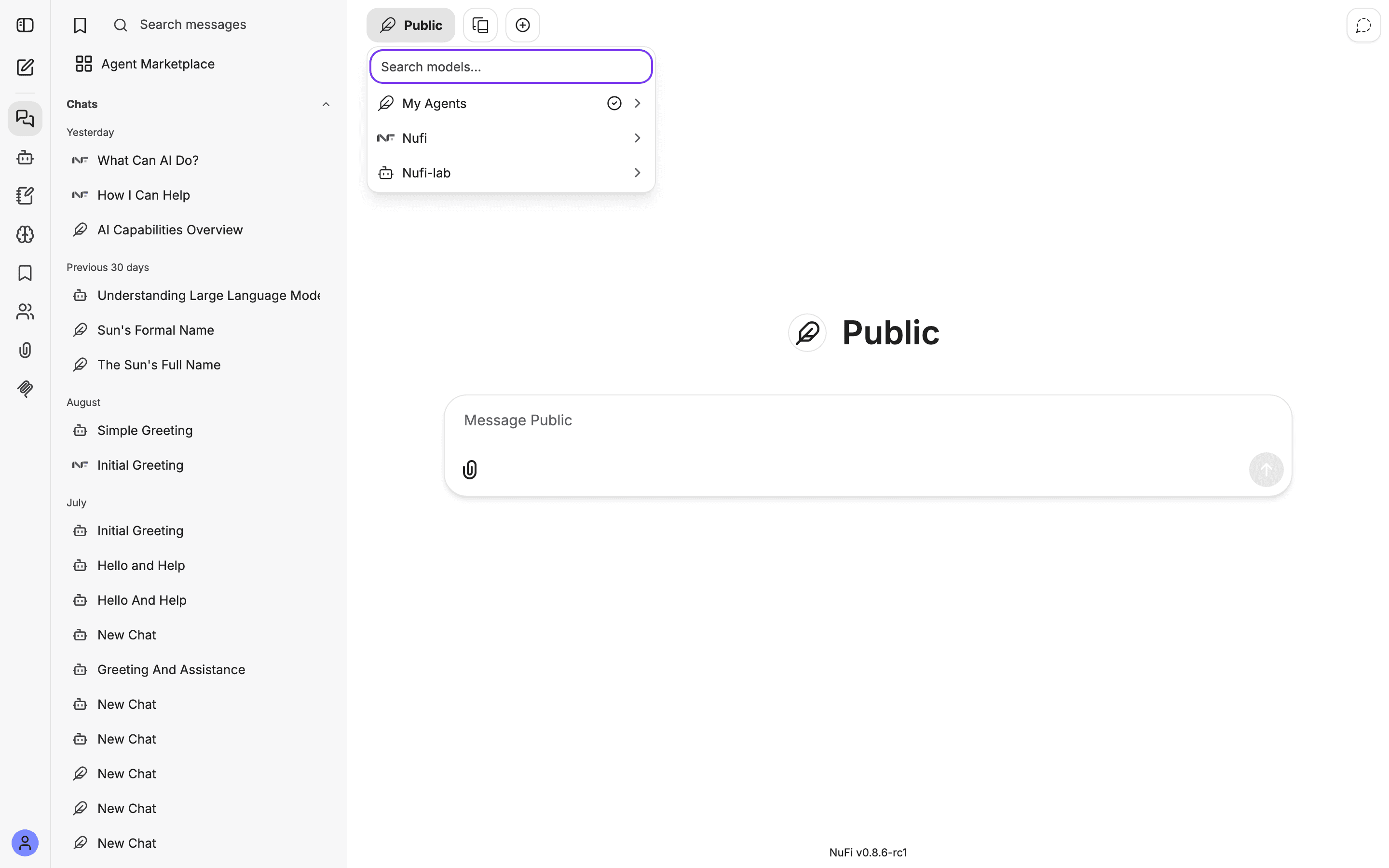
The picker is the same in Basic and Advanced mode; agents you build appear under My Agents. When your administrator adds a model, reloading the page is enough to see it.
Larger models are usually better at reasoning and slower; smaller ones are quicker and cheaper. Try a few on the kind of question you ask most.
Tune the response style
The Parameters panel is in Advanced mode only, and only for plain models — an agent carries its own settings.
Open Parameters from the left icon rail:
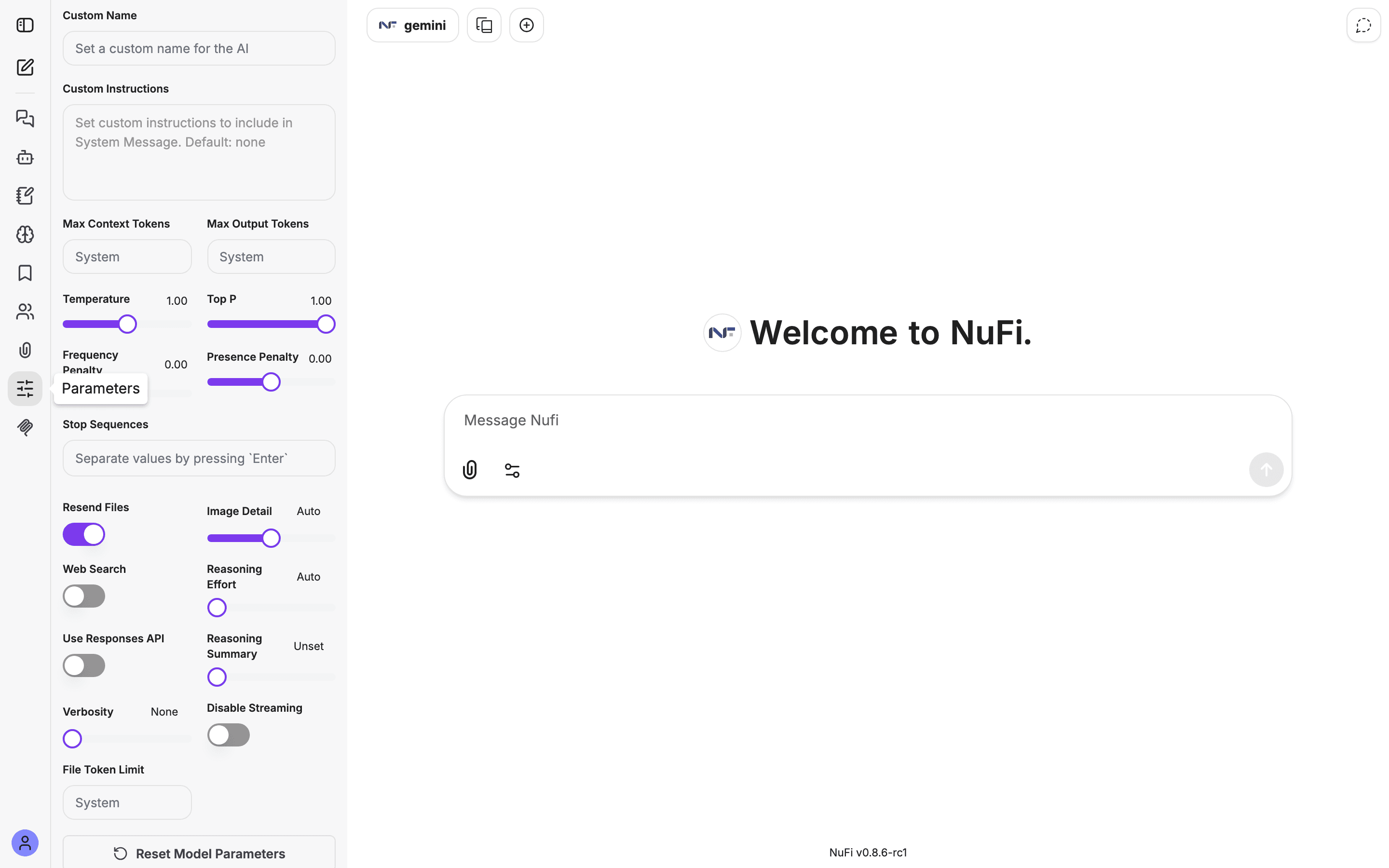
The settings you will actually reach for:
- Custom Instructions — what the model should know before your first message: a persona, a tone, standing rules. ("You are a concise assistant. Reply in Vietnamese.")
- Temperature — low, near 0, for precise and repeatable answers (code, summaries, data); high, near 1, for varied and creative ones.
- Max Output Tokens — caps how long a single reply can be.
The rest — Top P, frequency and presence penalty, reasoning effort, verbosity — are sampling controls. Leave them alone unless you know what you want. Reset Model Parameters at the bottom restores the defaults.
One toggle here is a trap: Web Search in this panel is the model provider's own search option and does nothing through NuFi's gateway. Web search in NuFi is the Tools-menu feature described on Web search.
Settings apply to the current conversation only. Save a combination you like as a preset.
Presets
A preset is a saved bundle of model, parameters and instructions under a name. Presets in the top bar lists yours — "No presets yet, use the settings button to create one" until you make one.
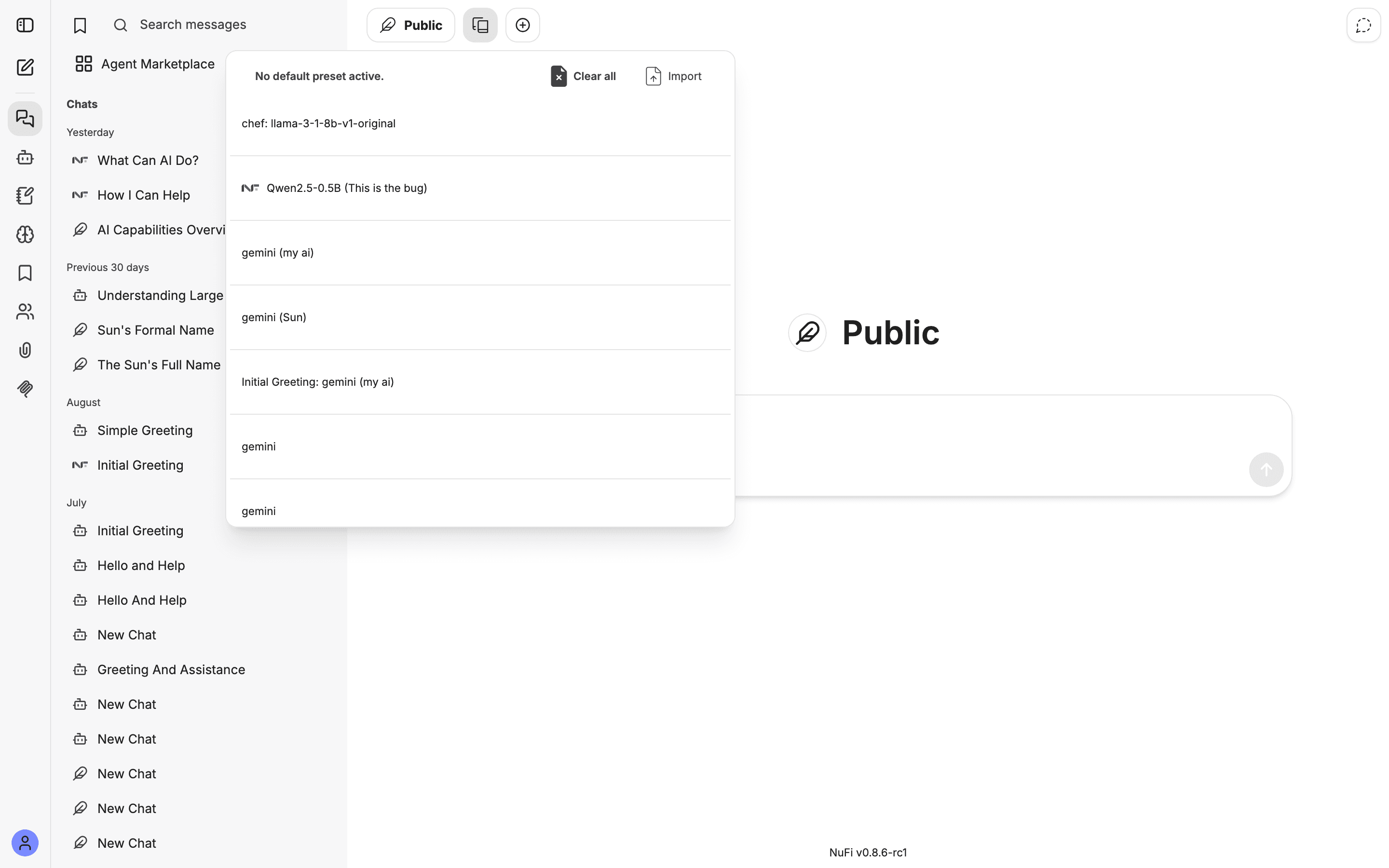
- Create one — set a model and its parameters the way you like, then save from the Parameters panel under a clear name: Code review, Translation EN→VN, Friendly reply.
- Use one — pick it from the menu. A new conversation starts with all its settings applied.
- Import and Clear all are in the same menu.
Saved prompts
A saved prompt is lighter than a preset: a piece of text you reuse,
with no model attached. Manage them under Prompts in the left icon
rail, and insert one by typing / at the start of the message box.
Good candidates are personas, boilerplate, and tone modifiers like
"Rewrite in plain English, no jargon."
If the model menu is empty
- Reload the page once.
- If it is still empty, the platform cannot reach its model gateway. Your administrators have monitoring that says why.