
Files and images
Attach documents and images to a message and ask about them, and what the app does and does not do with files.
You can attach files to a message and ask about them — read a PDF, describe a photo, turn a screenshot into a table.
Guides: Chat with a document and Analyze data and images.
Attach a file
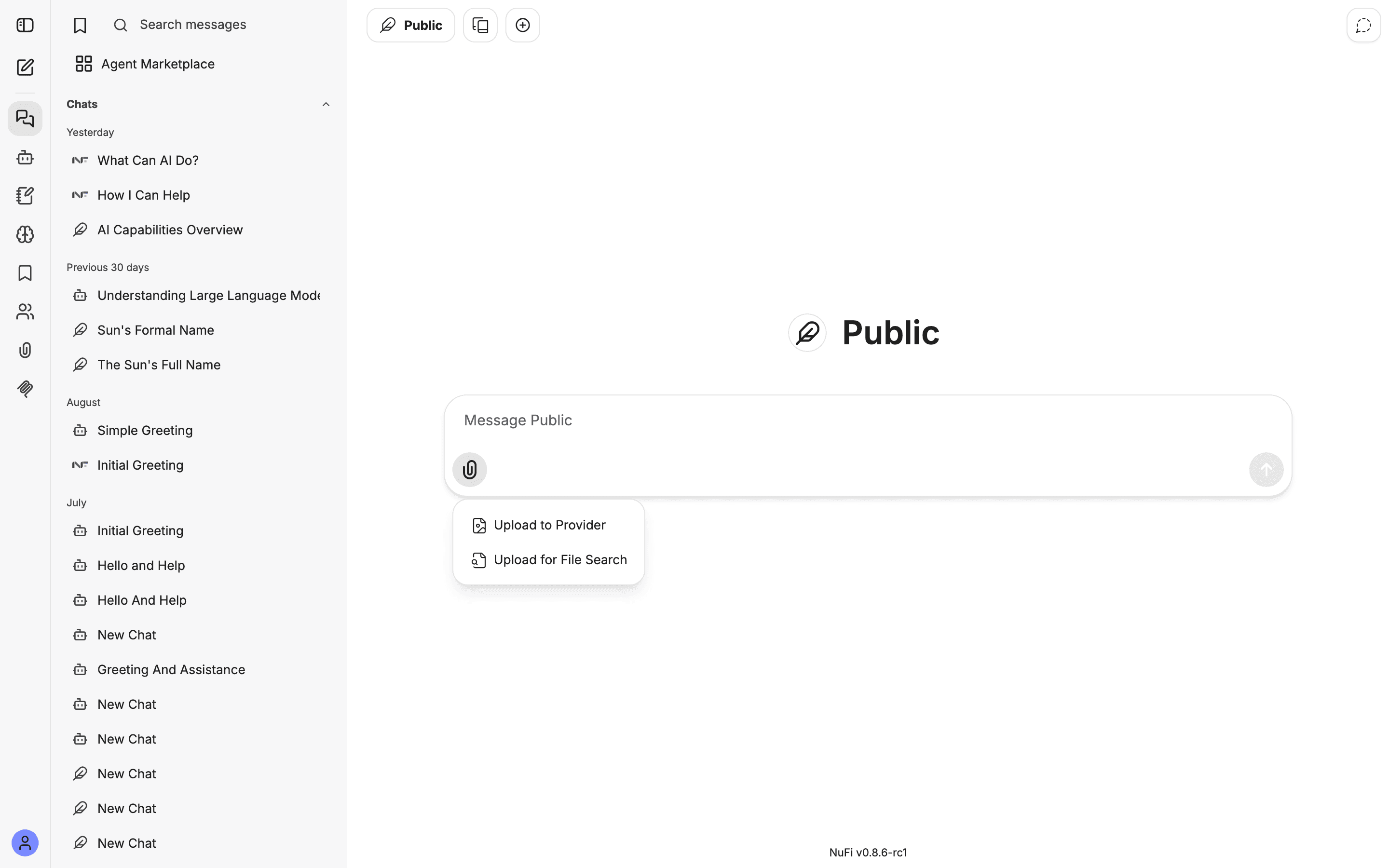
Several files can go on one message.
Search across your files
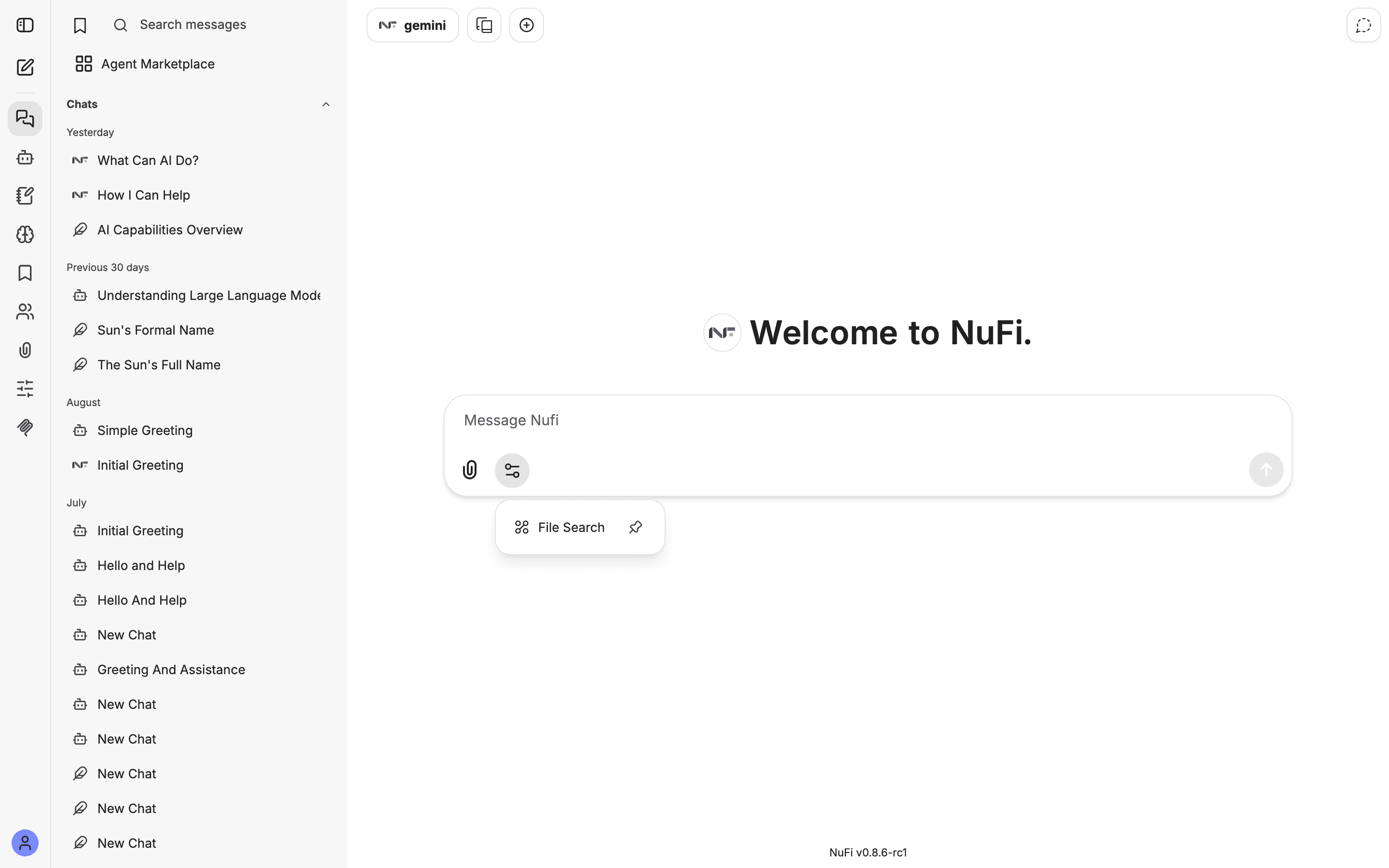
In Advanced mode, a conversation with a plain model has a Tools menu — the sliders icon beside the paperclip — and File Search is in it. Turn it on, upload files with Upload for File Search, and the model looks through them for the relevant parts when it answers, so you do not paste anything yourself.
An agent does the same through its own File Search capability, set once in the Agent Builder rather than per conversation.
For documents that should stay available in every chat, and can be shared with a team, build a knowledge agent instead — see Knowledge and document chat.
Talk to a document
Upload a PDF, then ask:
Summarise the main findings of this report in 5 bullets.
What does section 3.2 say about pricing?
Translate the conclusion into Vietnamese.
Look at an image
Upload an image, then ask:
What is in this photo?
Read the text in this screenshot and turn it into a table.
This needs a model that accepts images. If the reply says it cannot see the image, switch models from the model picker.
What you can attach
| Type | Formats |
|---|---|
| Images | PNG, JPEG, WebP, GIF |
| Documents | PDF, plain text, Markdown, CSV, Word (.docx), JSON |
Source code files are not accepted as attachments. Paste the code into the message instead.
Per message, on the standard model: up to 5 files, 20 MB each, 50 MB in total. Files uploaded into an agent for search have their own, larger limits. Your administrator can change all of these.
Generating images
The app does not generate images at the moment. If your organisation adds an image tool, it will appear in an agent's Tools menu; until then, asking a model for a picture gets you a description of one.
Where your files live
Every file you upload is kept with your account and listed under the avatar menu → My Files. Deleting a conversation does not delete the files attached to it; remove them from My Files when you no longer need them. Nobody else sees your files unless you share a conversation or an agent that uses them.
Errors you might see
- "File size limit exceeded for endpoint" — the file is over the per-file cap, or the message is over the total. Compress it, split it, or send fewer files at once.
- The file type is refused — it is not in the table above. Convert it, or paste the text.
- "Too many requests. Try again later" — you sent too much too quickly. Wait a few seconds.