
Teams and sharing
Create a team, invite people, and share knowledge files, agents, and prompts — to everyone or to a specific group.
A team is a shared workspace. Instead of everyone building their own agents and re-uploading the same documents, one person sets things up once and shares them — so the whole team works from the same knowledge, the same assistants, and the same prompts.
You reach teams from the Teams icon (the people icon) in the left icon rail. The rail shows it in Advanced mode only.
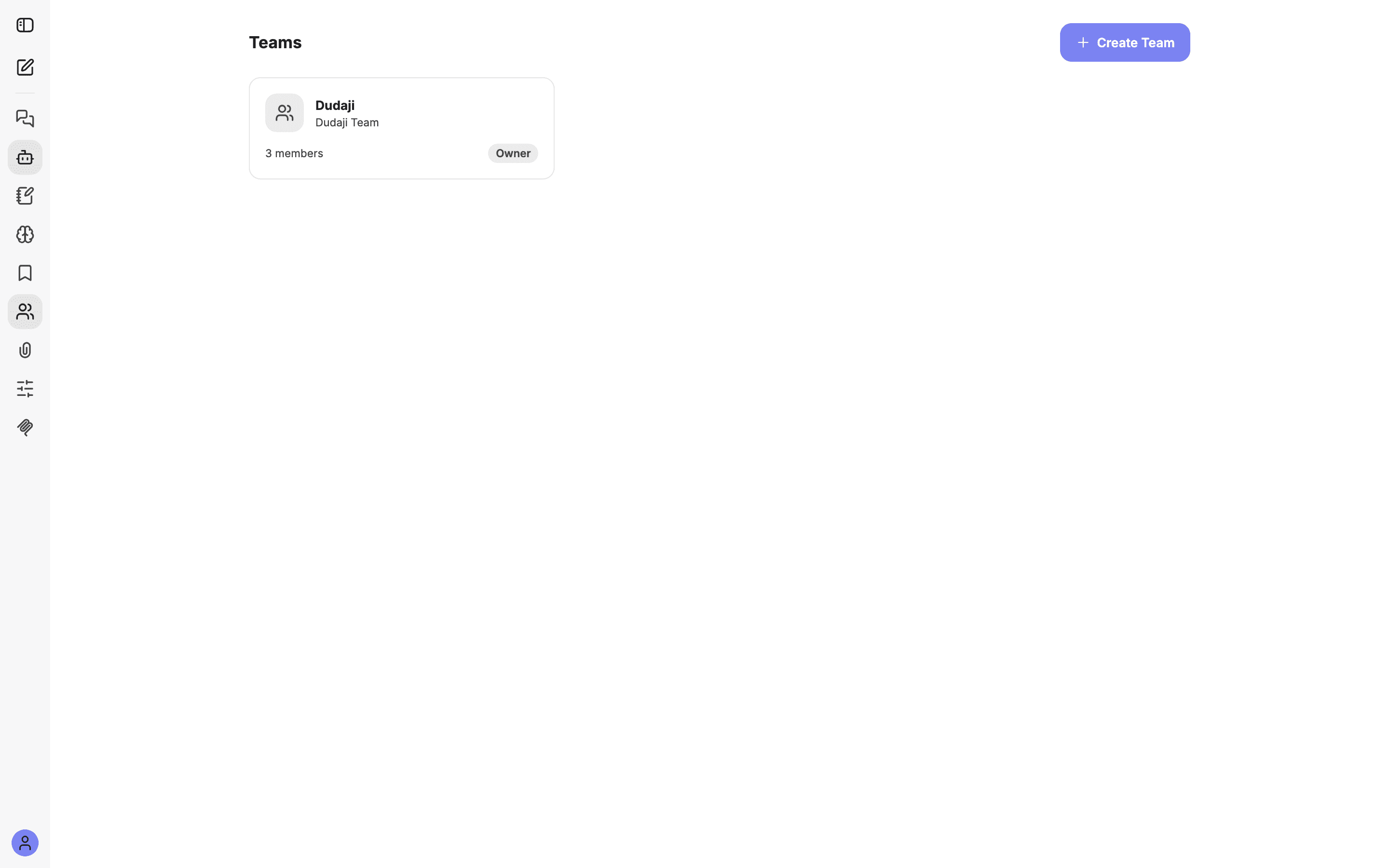
Guides: Set up a team workspace and Build a knowledge assistant.
What you can share
A team lets you share three kinds of things:
| You share… | So teammates can… | Where |
|---|---|---|
| Knowledge files | Ask questions answered from those documents | Knowledge tab |
| Agents | Use an assistant you built, without rebuilding it | Shared tab |
| Prompts | Reuse a saved prompt | Shared tab |
Shared knowledge files power document chat for the whole team — see Knowledge and document chat for how that grounding works.
Roles
Every member has a role. The role decides what they can change.
| Role | Can do |
|---|---|
| Owner | Everything — invite, remove, change roles, share, manage groups, transfer ownership, delete the team. One owner per team. |
| Admin | Manage members and invites, and share knowledge / agents / prompts. |
| Member | Use everything shared with the team. |
Create a team
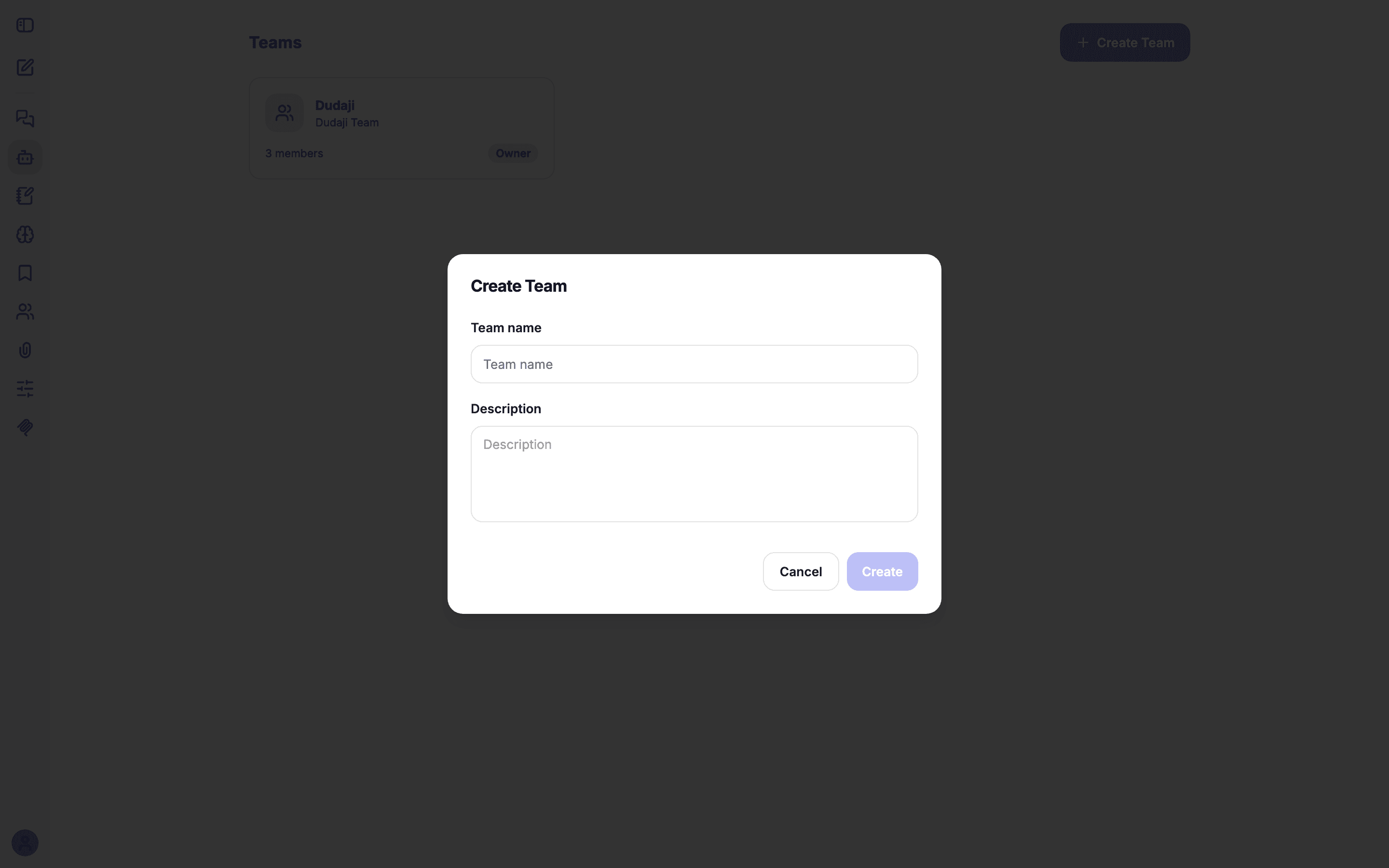
Invite people
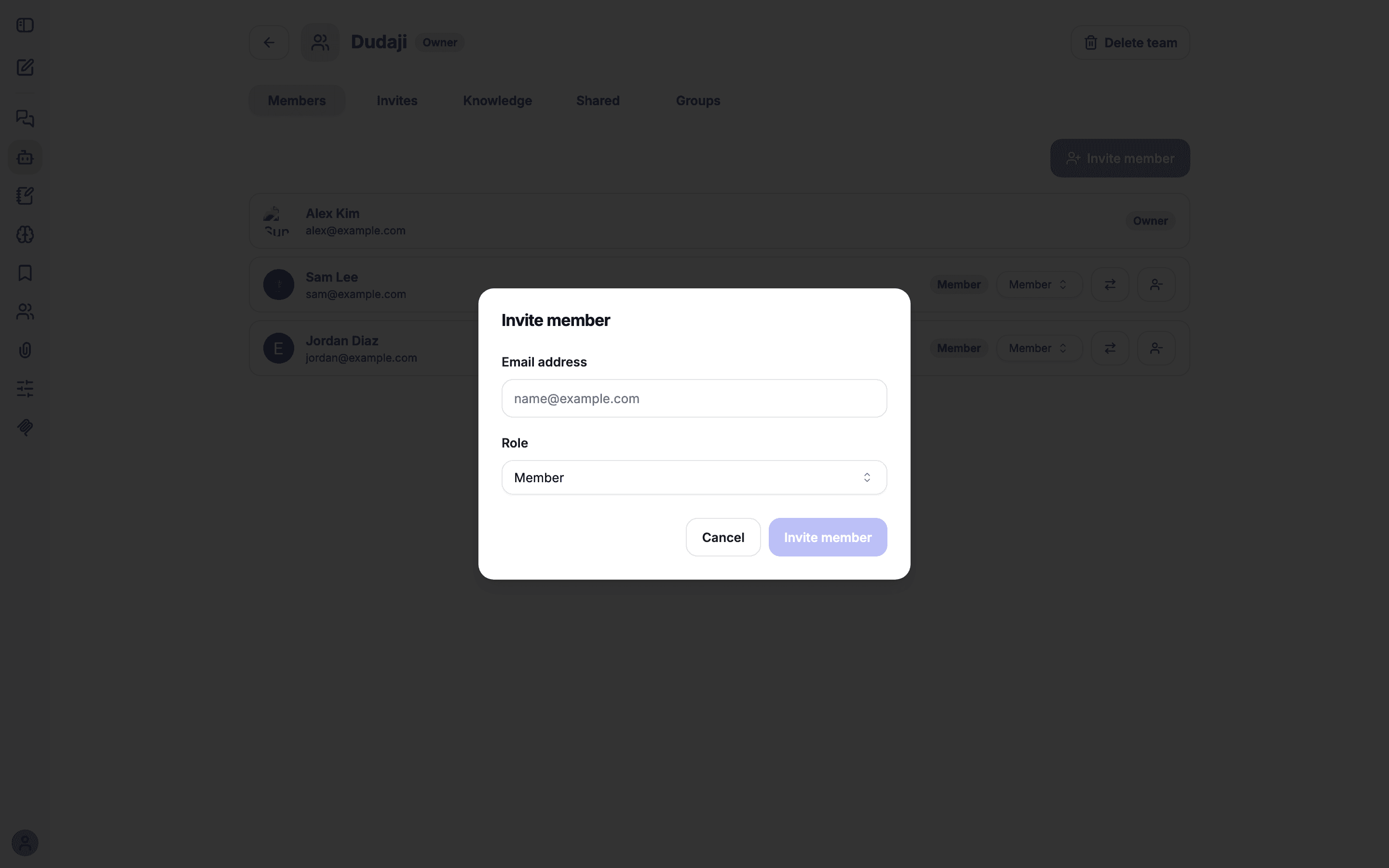
The person you invited sees the invitation inside the app and
accepts it there. chat.nufi.me sends no email, so tell them it is
waiting. Pending invitations
you've sent appear under the Invites tab until they're accepted.
Manage members
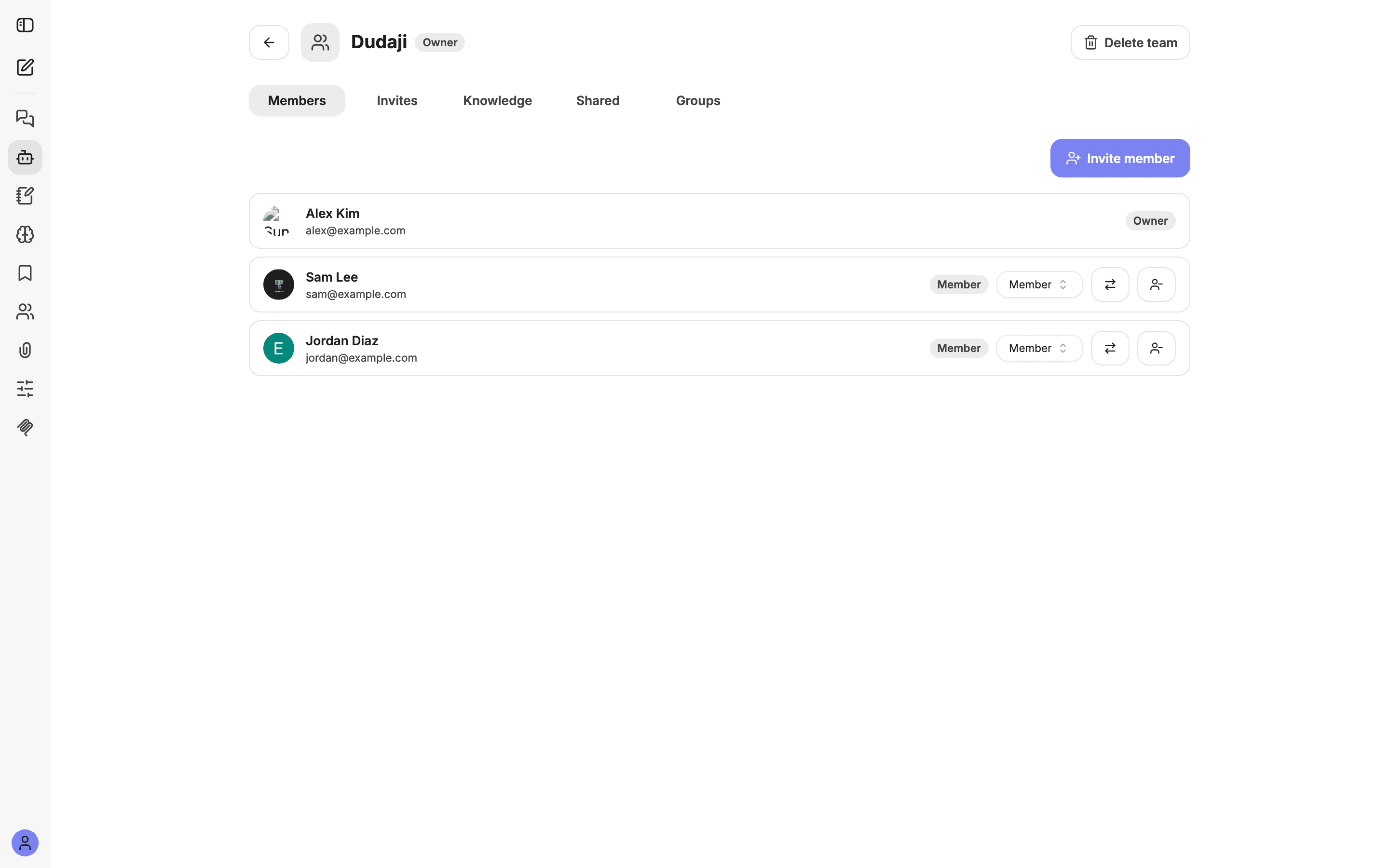
The Members tab lists everyone on the team. As an owner or admin you can:
- Change a role — switch someone between Member and Admin with the role dropdown.
- Transfer ownership — hand the Owner role to another member.
- Remove — take someone off the team.
Share a knowledge file
Files you share here become the team's shared knowledge — anyone on the team can ask questions answered from them.
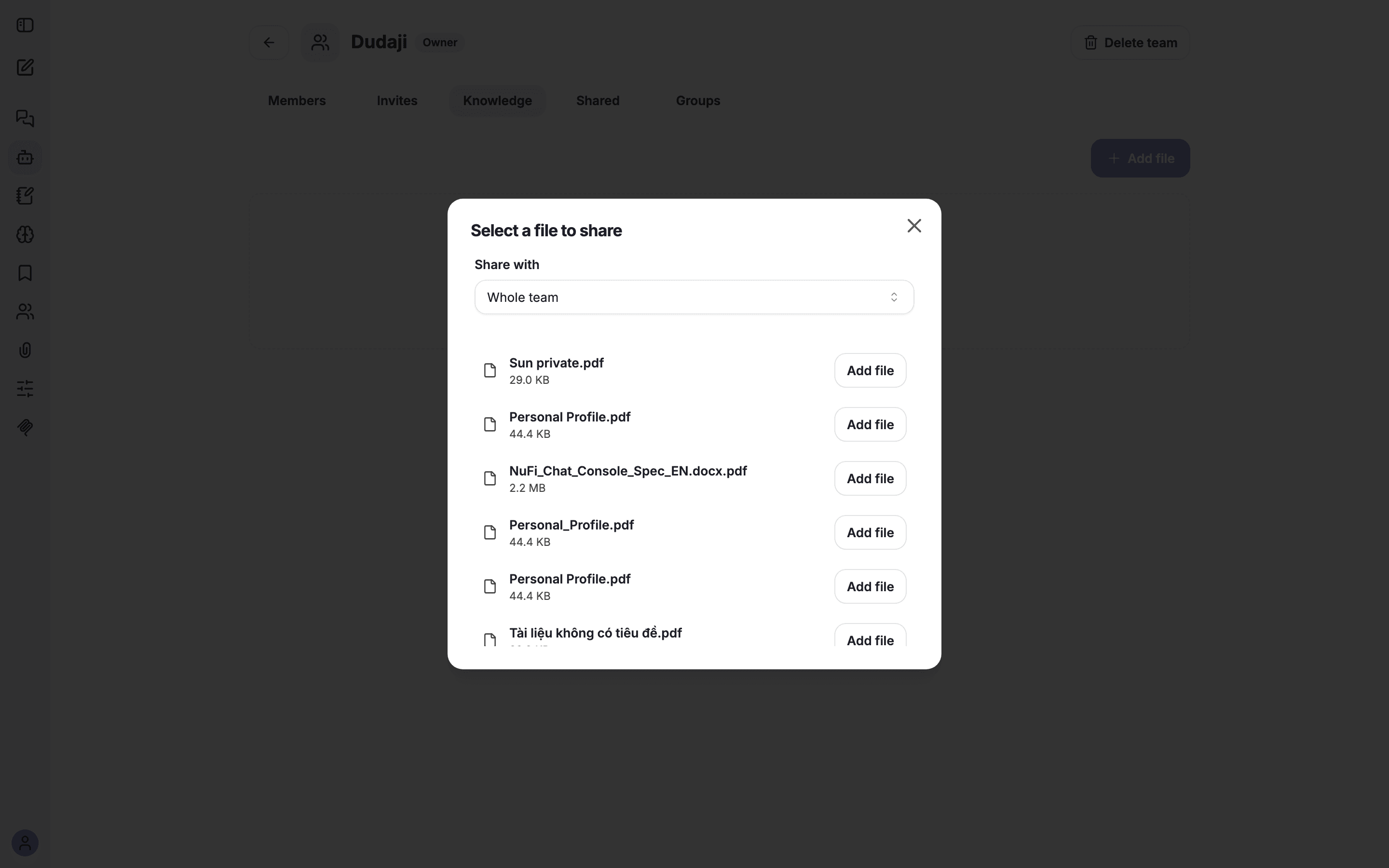
You share files you've already uploaded to your own account. To get a document into your account first, upload it in a chat or an agent — see Files and images.
Share an agent or a prompt
Open the Shared tab. It has two sections — Agents and Prompts — each with its own Add button.
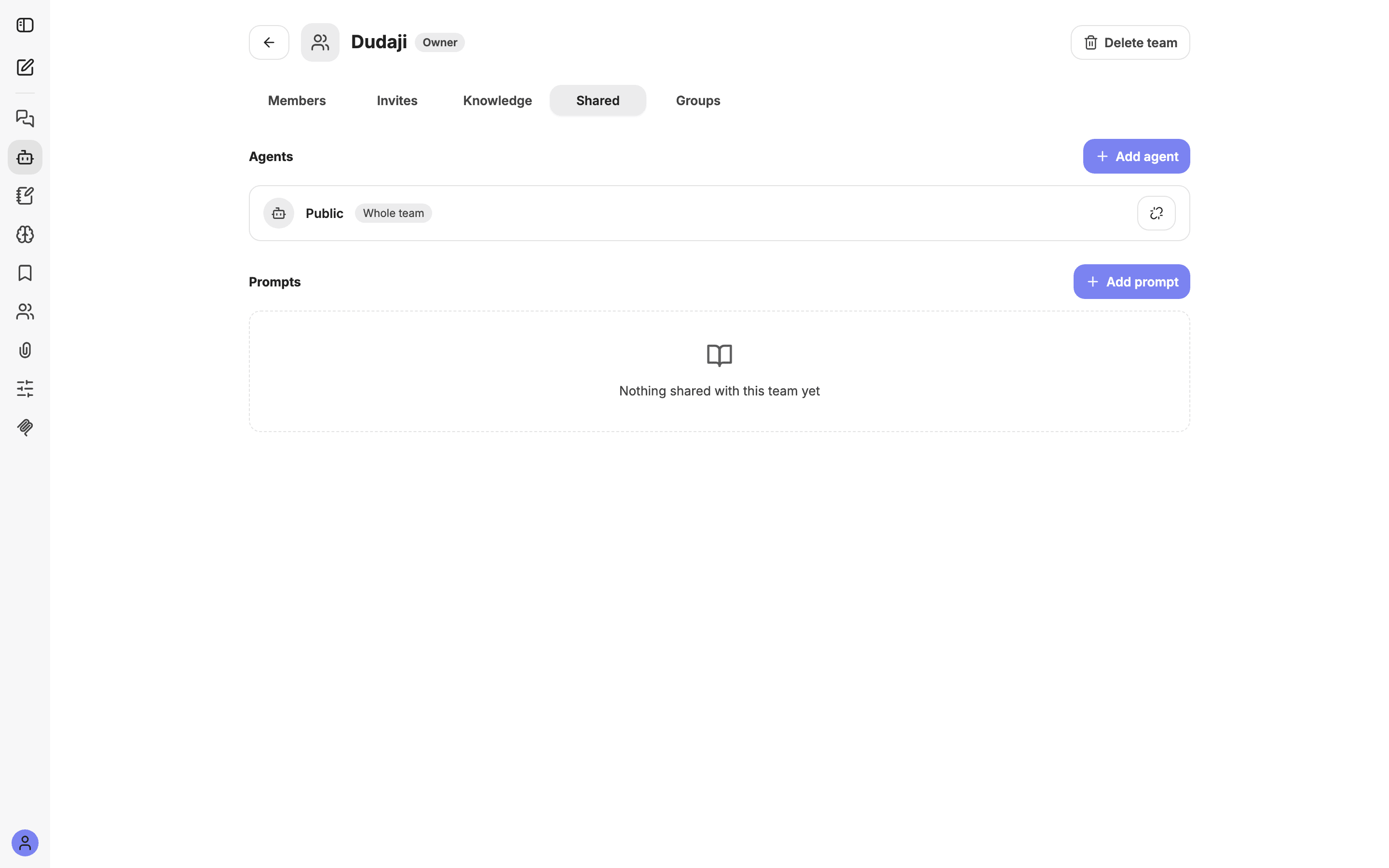
An item's tag (e.g. Whole team) shows who it's shared with. Remove sharing from the same list at any time.
Groups
Share with just some of the team. Sometimes you don't want to share
with everyone. A
group is a named subset of the team — like Manager or Staff —
that you can target when sharing.
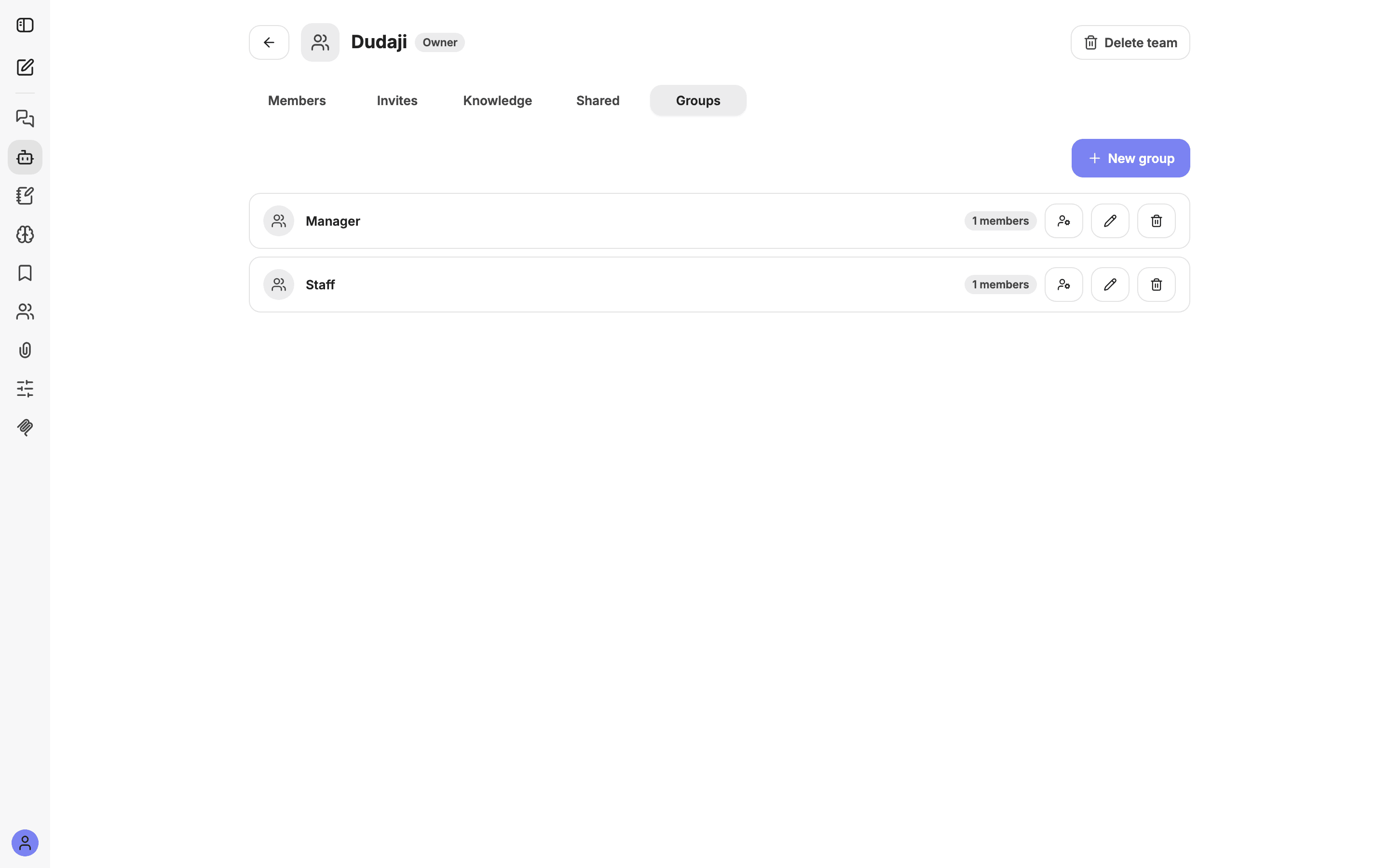
A person can be in more than one group, and they get everything shared
with any group they're in (access adds up — it never takes away).
This is handy for things like a Manager-only policy document while a
general handbook stays shared with the whole team.
Leaving or deleting a team
- Members and admins can leave a team they no longer need.
- Only the Owner can delete the team (the Delete team button, top-right of the team page). Deleting removes the team and un-shares everything that was shared through it — the original files, agents, and prompts still live in each person's own account.
- To step back without deleting, an owner can transfer ownership to someone else first.
Troubleshooting
- I don't see the Teams icon — switch to Advanced mode first. If it is still missing, your organisation hasn't enabled teams for you.
- A teammate can't see what I shared — check the Share with audience. If you shared with a group, make sure they're in it. Newly shared items can take a moment to appear.
- I can't invite or share — those actions need the Owner or Admin role. Ask an owner to change your role or share on your behalf.
- I invited the wrong person — cancel the pending invite on the Invites tab, or remove them on Members if they already joined.