
Sign in and your account
Create your account, sign in, turn on two-factor authentication, and find your way around Settings.
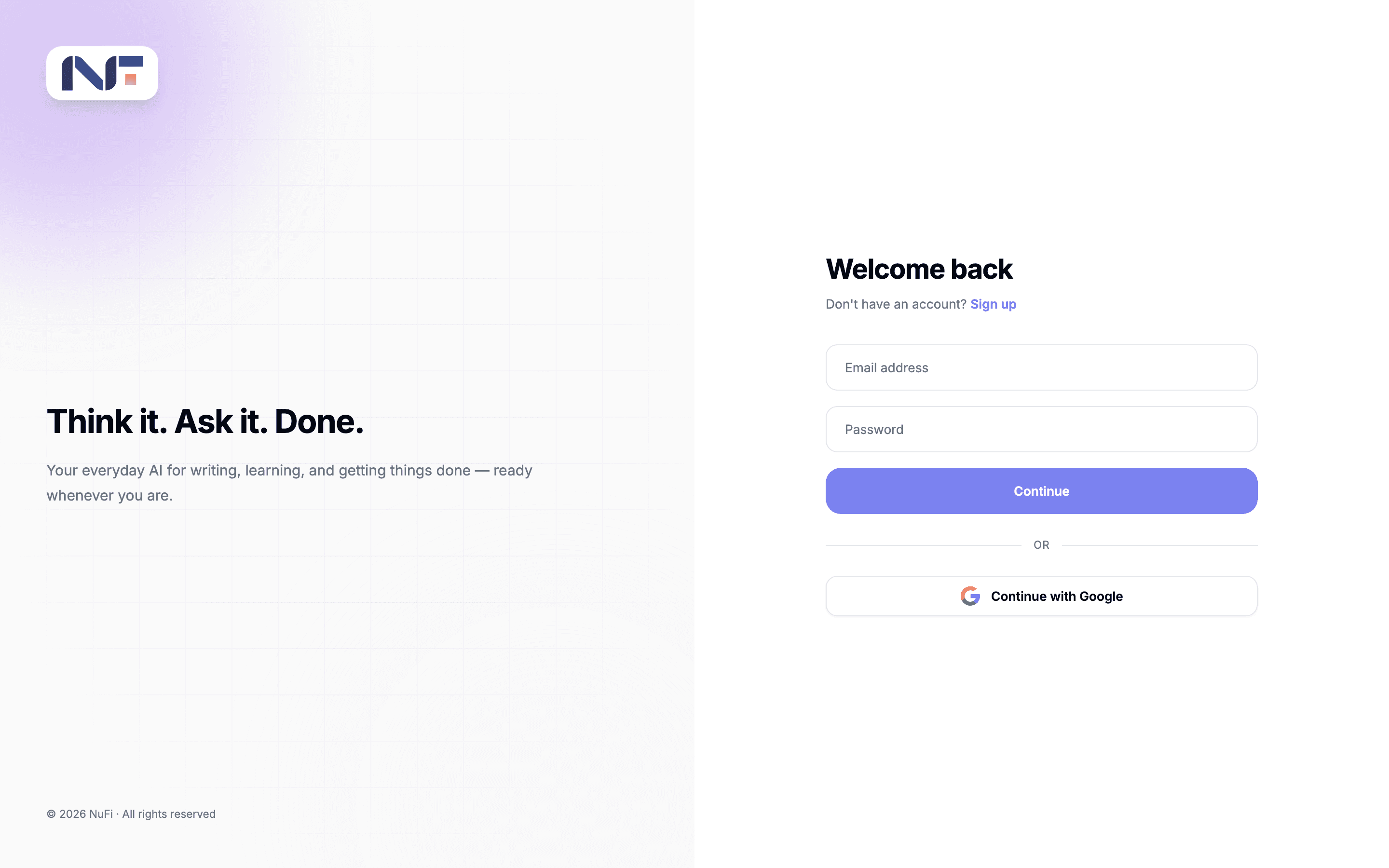
Create your account
chat.nufi.me.Or click Continue with Google and skip the password. A Google account and an email account with the same address are two different accounts, so pick one way and keep to it.
Sign in
On the Welcome back screen, enter your email address and password and click Continue, or use Continue with Google.
You stay signed in for a while after that, and the same session opens
the console at console.nufi.me and the agent apps behind
agents.nufi.me. There is no second login.
Forgot your password?
chat.nufi.me sends no email, so there is no reset link on the sign-in
screen. Ask your administrator to reset the password for you. If you
signed up with Google there is nothing to reset: use Google's own
recovery.
Two-factor authentication
Two-factor authentication (2FA) asks for a code from your phone on top of your password. It is available for accounts with a password; a Google account is protected by Google's own second factor instead.
From then on, sign-in asks for the six-digit code after your password.
The account menu
Click your avatar at the bottom-left of the app:
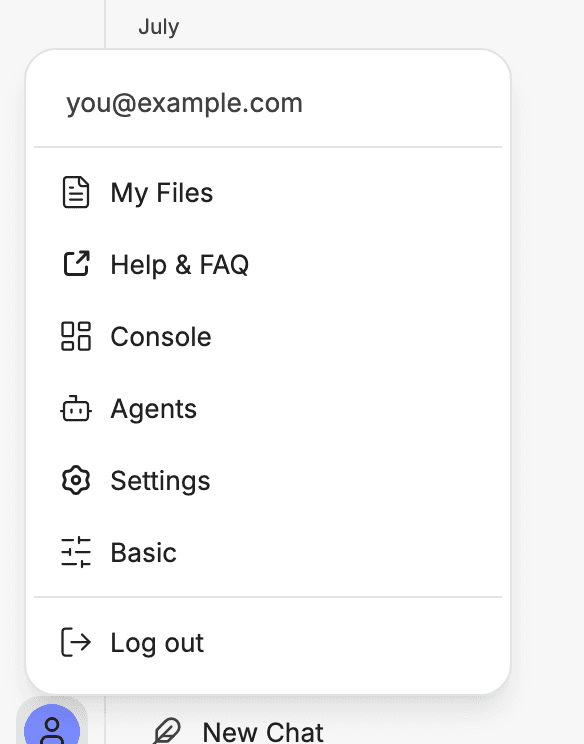
| Entry | What it opens |
|---|---|
| My Files | Every file you have uploaded, in any conversation or agent |
| Help & FAQ | The help site of the chat engine NuFi is built on |
| Console | Your developer console, for API keys |
| Agents | The chooser for Studio and Works |
| Settings | The tabs below |
| Advanced / Basic | Switches the interface mode — see Basic and Advanced mode |
| Log out | Signs you out on this device |
Settings
| Tab | What is in it |
|---|---|
| General | Interface (Basic or Advanced), Theme, Language, a few display toggles, and Archived chats |
| Chat, Commands | Advanced mode only: how messages render, and which / commands are active |
| Speech | Dictation and read-aloud — see Speech |
| Personalization | What the assistant is allowed to remember about you, where memories are enabled |
| Data controls | Import conversations, Shared links, Revoke Keys, delete the speech cache, Clear all chats |
| Account | Display username in messages, profile picture, 2FA, backup codes, Delete account |
Two entries here cannot be undone. Clear all chats deletes every conversation you have. Delete account removes the account and its data. Neither asks your administrator first.
Sign out
Avatar menu → Log out. That ends the session on the device you are using. Other browsers where you are signed in stay signed in; on a shared machine, log out there too.
Common issues
- I created an account with Google and now the password form rejects me. The two are separate accounts. Use Continue with Google.
- The 2FA code is rejected. Your phone's clock has drifted. Turn on Set automatically in its date and time settings.
- I am bounced between the app and the console. Log out, clear
cookies for
nufi.me, and sign in again at the app. - I cannot find the Agents entry or the Advanced switch. Your app is older than this page, or the menu was cut off on a small screen. Scroll the menu, or ask your administrator.