
Chat with a document
Upload a PDF or report and ask questions, get summaries, and translate it — all in one conversation.
Have a long PDF, contract, or report you don't want to read end to end? Upload it and ask NuFi about it. You'll get answers grounded in the document — summaries, specific facts, and translations — without pasting anything by hand.
What you'll need
- A file to work with — PDF, Word, plain text, or Markdown.
- Any recent model. For a scanned document or a photo of text, pick a vision-capable model (see Models).
Steps
Click the paperclip at the bottom-left of the message box, or drag the file onto the conversation, and choose Upload to Provider. If the menu also offers Upload as Text, that pulls the text into your prompt instead.
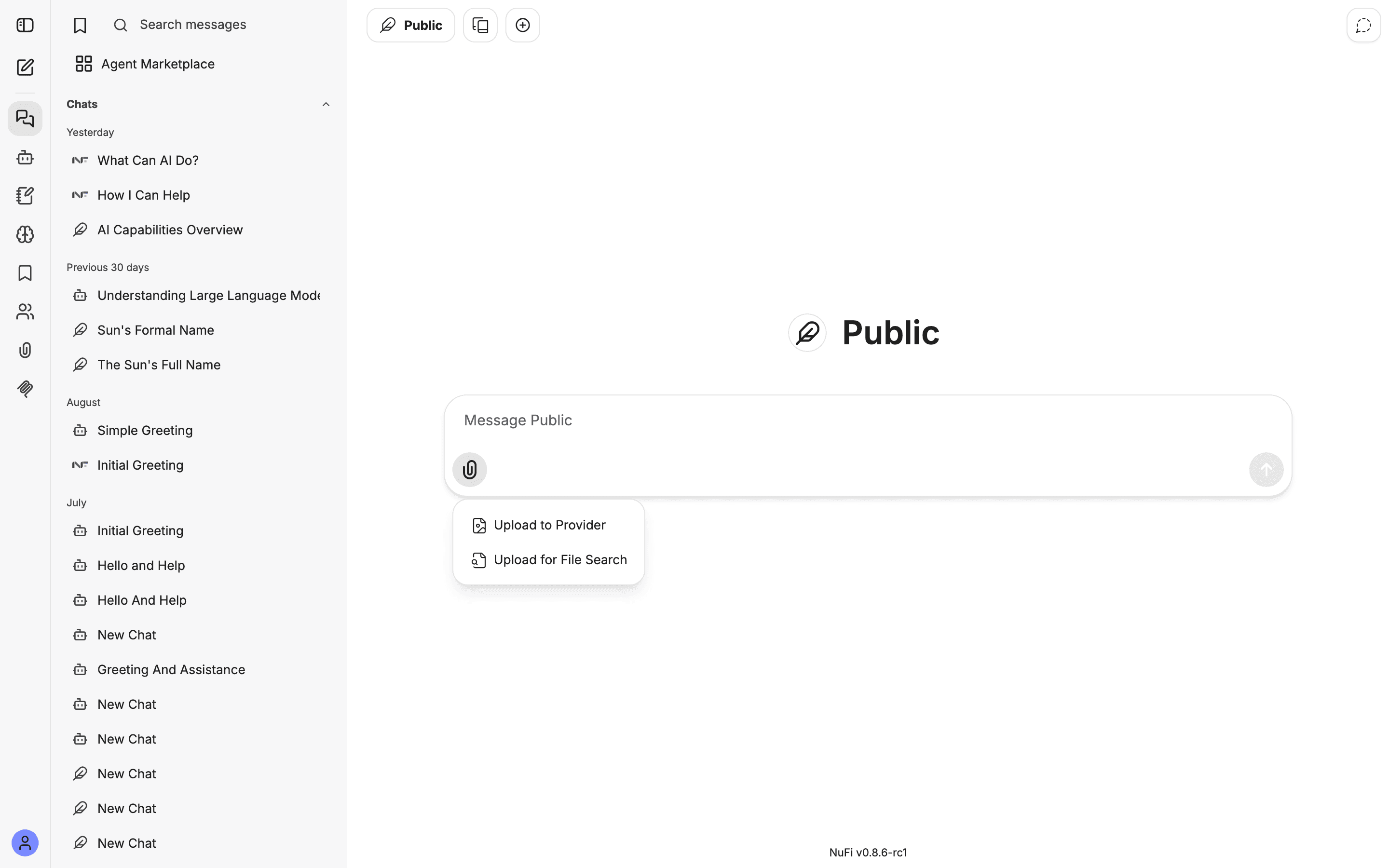
Ask your first question, for example:
Summarise the key findings of this report in 5 bullets.
Keep going in the same chat — the file stays in context:
What does section 3 say about pricing?
Translate the conclusion into Vietnamese.
Comparing several files at once? In Advanced mode, open the Tools menu (the sliders icon beside the paperclip), turn on File Search, and attach the files with Upload for File Search so the model can look across all of them.
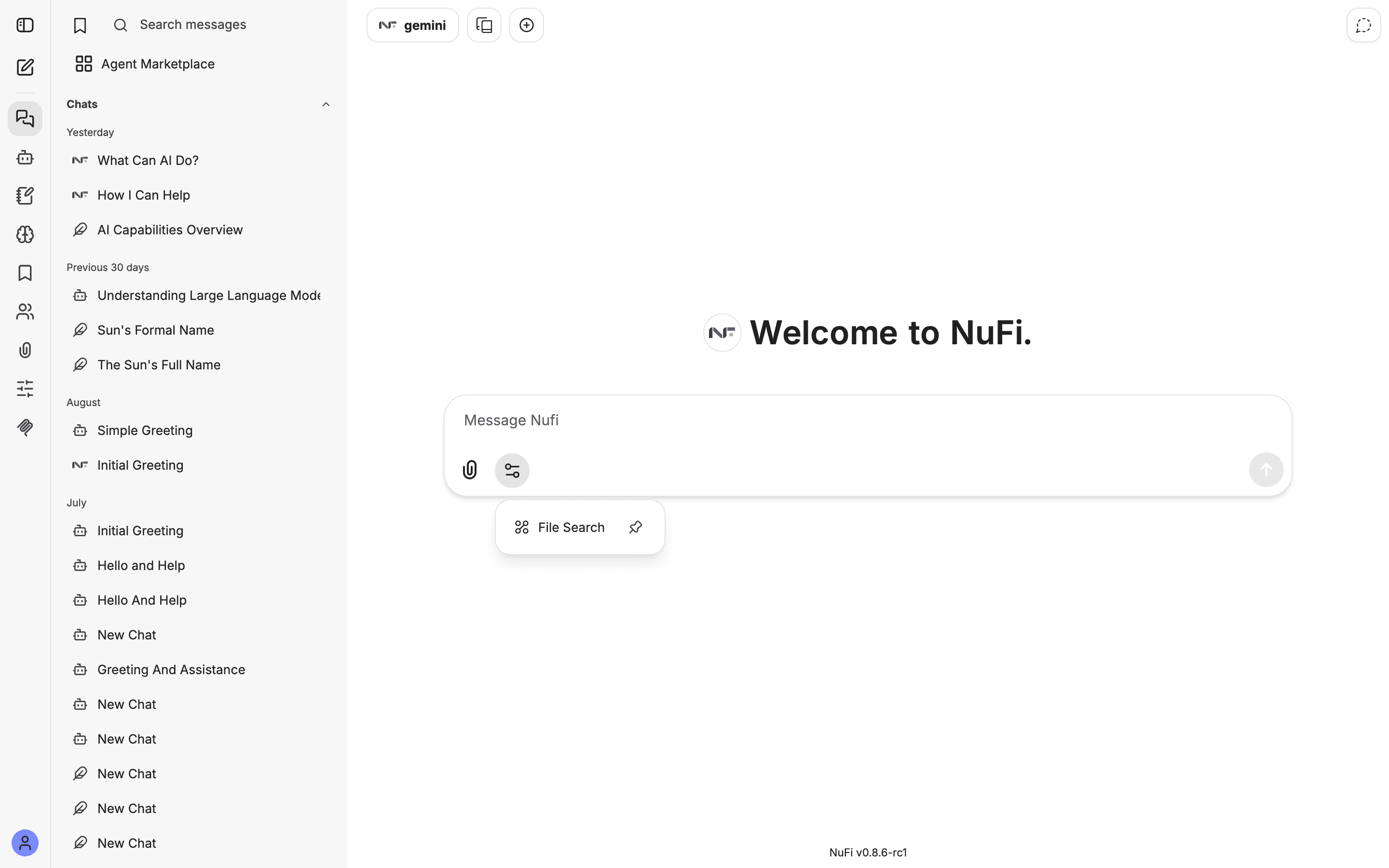
What you get
Answers that quote the document instead of guessing — for example:
Key findings
- Revenue grew 18% year over year, driven by the EU region.
- Support costs fell after the March automation rollout.
- …
You can follow up, translate, or ask for the exact wording of any section.
Make it better
- One document per chat keeps answers focused. Start a fresh chat for a different file.
- Use File Search when you want to compare or search across many uploaded files at once.
- Scans and photos need a vision model — if the AI can't "see" the text, switch models.
- Want a document that stays available in every chat and can be shared with your team? Build a knowledge agent instead — see the guide below.